
Finding the perfect balance between your CPU and GPU is the “holy grail” of PC building. You’ve saved up the cash, picked out a shiny new graphics card, but then it happens: your frame rates stutter, your 100% CPU percentage usage while gaming hits a wall, and you realize something is holding your rig back.
Welcome to the world of bottlenecks—the silent performance killer.
In this guide, we’ll break down how to use a PC bottleneck calculator to build a balanced system, maximize your FPS, and ensure your hardware actually plays nice together.
What is a PC Bottleneck (And Why Should You Care?)
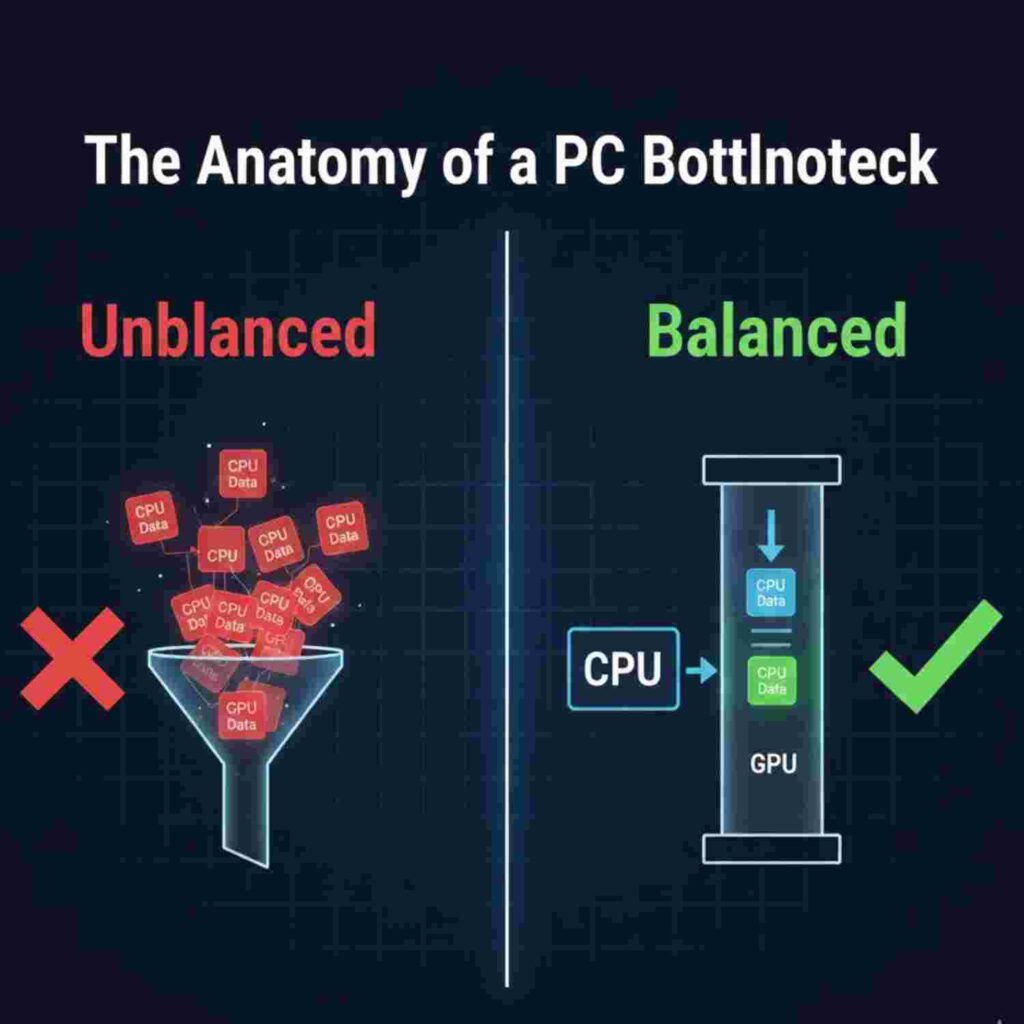
Think of your PC like a professional kitchen. Your CPU is the chef (making the decisions), and your GPU is the sous-chef (doing the heavy lifting/visuals). If the chef is too slow, the sous-chef stands around waiting. If the sous-chef is slow, the orders never get out.
A limiting factor in your PC—whether it’s an aging AMD Ryzen processor or an underpowered graphics card—prevents the other parts from reaching their full potential. This leads to low frame rates, annoying FPS drops, and a waste of money.
The Two Main Culprits:
CPU Bottleneck:
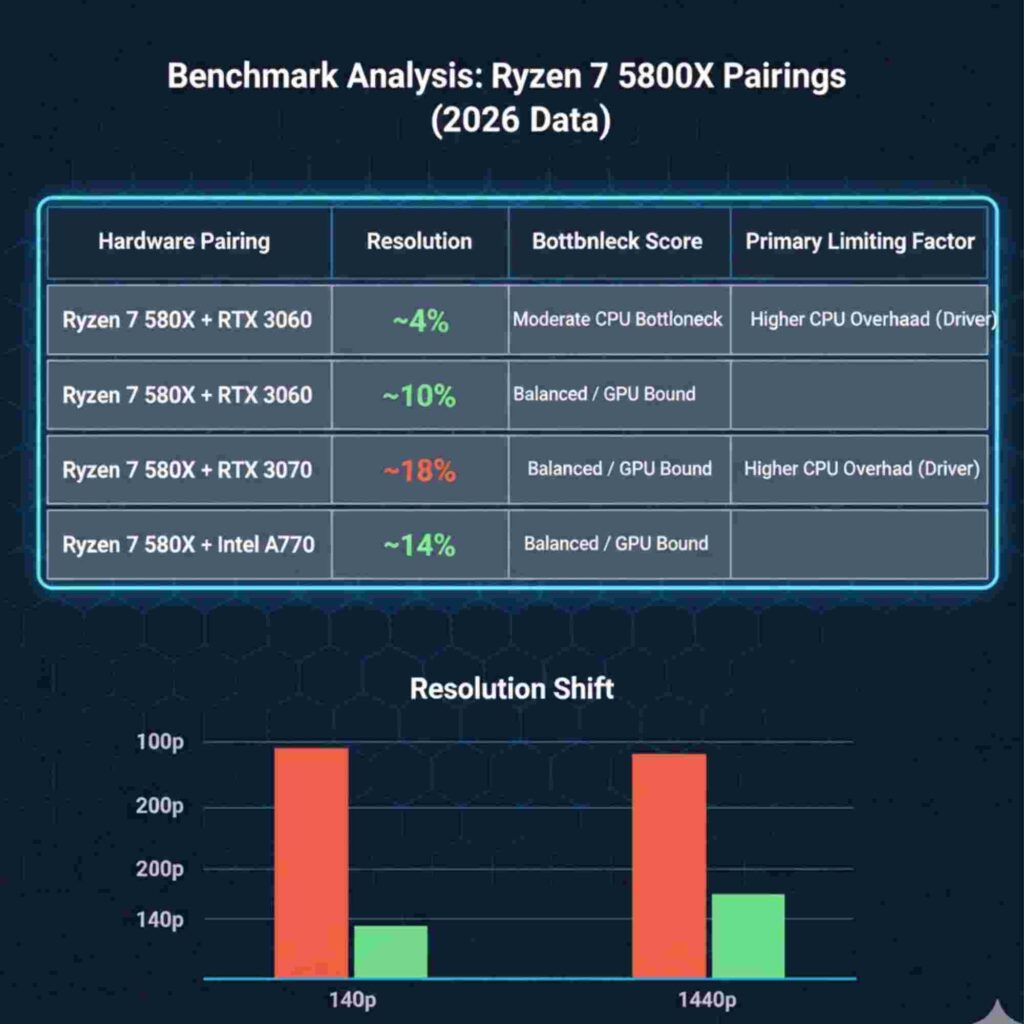
Your processor can’t keep up with the GPU’s speed. Common when playing at lower resolutions (1080p) with a monster card like an RTX 4070 Ti.
GPU Bottleneck:
Your graphics card is maxed out while the CPU is chilling. This is actually preferred for a smooth gaming experience at higher resolutions like 4K.
How Does a Bottleneck Calculator Work?
A trusted bottleneck calculator uses huge sets of benchmark data to compare how different PC components interact. By selecting your CPU & GPU, the tool generates a bottleneck percentage score.+1
While no calculator is 100% perfect (because every game uses hardware differently), it gives PC builders a vital starting point to avoid buying a Ryzen 7 7800X3D only to pair it with a weak, entry-level card.
Numbers from a calculator are a starting point — if you want to see what’s actually happening inside your system during a real gaming session, read our hands-on guide on how to find your PC bottleneck through live monitoring.
Key Factors the Calculator Considers:
- Screen Resolution: Higher resolutions (1440p/4K) shift the load to the GPU.
- Use Case: Are you gaming, or is this for heavy video editing?
- Refresh Rate: Aiming for 240Hz requires a much faster CPU than 60Hz.
Beyond the Basics: Hidden Performance Killers
It’s not just about the big two. To get optimal performance, you need to look at the “weak links” in the chain:
- RAM Speed & Capacity: Running 16GB RAM or 32GB RAM? Slow memory can cause frame drops even with a top-tier NVIDIA GeForce RTX card.
- Thermal Throttling: If your cooling system isn’t up to par, your hardware will slow itself down to stay cool.
- Storage Type: A slow HDD will cause “hitchings.” Modern modern games practically require a 1TB NVMe SSD for smooth asset loading.
- Background Processes: Use Task Manager to see if background tasks are eating your processing power before the game even starts
Pro-Tips for a Balanced PC Build
If you’re looking at an RTX 5060 or an AMD Radeon RX series card, keep these tips in mind:
- Match Your Tiers: Don’t pair a budget Ryzen 5 5600 with an ultra-high-end GPU unless you plan to play at 4K.
- Check GPU Wattage: Sometimes “bottlenecks” are just power issues. For example, if you’re wondering how to increase GPU wattage in Elden Ring, make sure your Power Supply is sufficient and your GPU drivers are updated.
- Monitor GPU Load: Use an overlay to check GPU load. If it’s under 90% while gaming and your CPU is at 100%, you’ve found your bottleneck.
Final Thoughts: Don’t Chase 0%
Here is the truth: Every PC has a bottleneck. If it didn’t, you’d have infinite FPS. The goal is to have a balanced system where the bottleneck is small and doesn’t ruin your smooth performance.
Use our bottleneck calculator to get your accurate results, identify your component limits, and finally get the gaming performance you paid for.
FREQUENTLY ASKED QUESTIONS
1. Why is my new PC build stuttering?
Stuttering in a gaming PC is usually caused by data delivery issues rather than lack of power. Common causes include shader compilation happening in real-time, slow storage like an HDD instead of an NVMe SSD, or too many background processes consuming CPU resources. These interruptions create micro-stutters that ruin smooth gameplay even with high-end components.
2. How to increase GPU wattage in Elden Ring?
Low GPU wattage in Elden Ring usually means your graphics card isn’t being utilized properly. Fix this by setting “Prefer Maximum Performance” in your NVIDIA or AMD control panel, enabling High Performance mode in Windows Power Settings, and increasing in-game graphics settings to force the GPU to work harder. Sometimes higher settings actually improve performance by waking up the card.
3. Will an Intel i5-9400F bottleneck an RTX 3060 Ti?
Yes, this combination creates a noticeable CPU bottleneck. The i5-9400F lacks hyperthreading and struggles to keep up with the RTX 3060 Ti at 1080p. You’ll likely see the CPU at 100% usage while the GPU stays below 70%. Upgrading to a Ryzen 5 5600 or switching to 1440p gaming would better balance the system.
4. How to help with a CPU bottleneck?
You can reduce CPU bottleneck without upgrading hardware. Increase your resolution to 1440p or 4K to shift workload to the GPU. Cap your frame rate to match your monitor’s refresh rate so the CPU doesn’t overwork. Also, ensure your RAM is running at its rated speed in BIOS to reduce data waiting times.
5. How to check my GPU speed and performance?
Use Task Manager for a quick glance at GPU load. For detailed monitoring, use MSI Afterburner to see real-time clock speeds, temperatures, wattage, and frame times during gaming. Benchmark tools like 3DMark or Superposition let you compare your scores against similar systems to identify if your GPU is performing below expectations.
6. How do I find out my PC bottleneck?
The best way to find your PC bottleneck is by monitoring component usage while gaming or running demanding tasks. Use tools like MSI Afterburner or Task Manager to check CPU and GPU utilization. If your CPU is at 90-100% while your GPU is below 80%, you have a CPU bottleneck. If the GPU is at 90-100% while CPU usage is lower, your GPU is the limiting factor. Also check RAM usage and storage speeds, as these can create hidden bottlenecks.
7. Is a 7.7% bottleneck bad?
No, a 7.7% bottleneck is generally considered good and falls within the acceptable range. Most systems have some degree of imbalance, and anything under 10% is typically unnoticeable during normal gaming. You won’t experience significant performance loss with a 7.7% bottleneck, and your components are well matched for most games at your chosen resolution.
8. What is 90% GPU bottleneck?
A 90% GPU bottleneck means your graphics card is running at near maximum capacity while your CPU has plenty of headroom. This is actually the ideal scenario for gaming—you want your GPU to be the limiting factor because that means you’re getting full performance from your most expensive component. A 90% GPU utilization indicates your graphics card is working hard and your CPU is feeding it adequately.
9. Is 30% bottleneck good?
No, a 30% bottleneck is considered significant and will impact your gaming experience. This level of imbalance means one component is substantially slower than the other, causing noticeable performance loss. If it’s a CPU bottleneck at 30%, you’ll experience stuttering and frame drops. If it’s a GPU bottleneck at 30%, you’re leaving graphics performance on the table. Consider upgrading the weaker component or adjusting your resolution to achieve better balance.